Export & Broadcast Studio
When your clips are edited and tagged, Broadcast Studio renders the finished game: your kept clips in order, with a broadcast scoreboard, automatic callouts and an end-of-match stat screen. You can also turn the overlays off for a clean cut.
Opening Broadcast Studio
Click Export in the editor toolbar. If your account has exports available, Broadcast Studio opens with your match loaded.
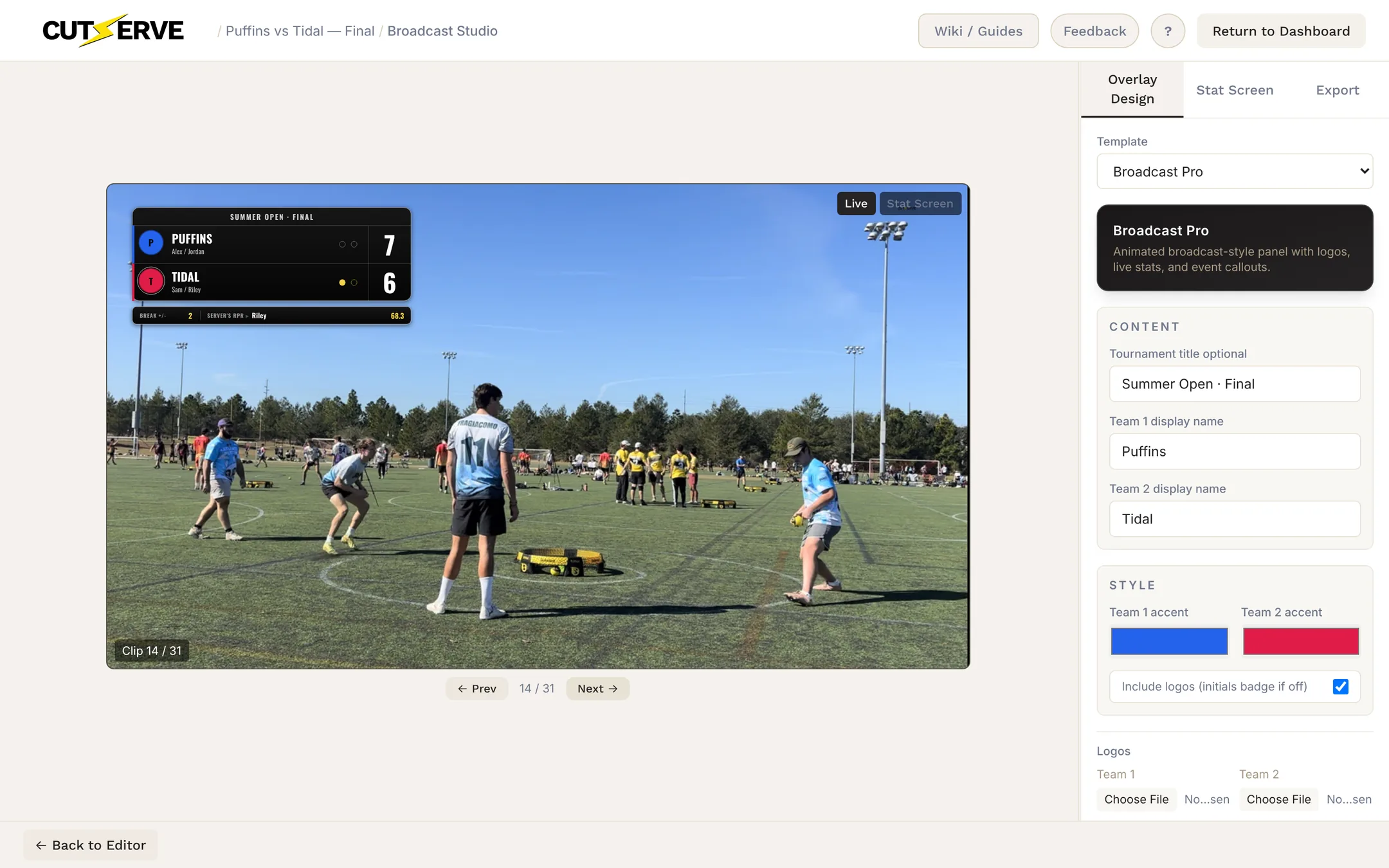
The preview is on the left and the settings are on the right, split into three tabs:
Overlay Design
Choose a template and customize titles, team names, colors and logos.
Stat Screen
Turn the end-of-match stat screen on or off, set how long it shows and pick its background.
Export
Choose what to include, the resolution and the frame rate, then render.
Use ← Prev and Next → under the preview to step through your clips and check the score on each one, and the Live / Stat Screen toggle to switch views. Team and player names come from your Match Setup; to change them, go back to the editor and open Settings. Broadcast Studio remembers your settings for next time.
Templates
Pick a template from the Template menu at the top of Overlay Design. The preview is drawn from the same layout the renderer uses, so the exported video matches what you see.
Broadcast Pro
An animated, broadcast-style scoreboard panel that slides in and out with each clip.
- Team rows with logos (or initials badges if you turn logos off), player names, the score and serve indicators.
- A stats bar with the break lead and the serving player's RPR going into the point.
- An optional tournament title. Leave it blank and the header bar disappears.
- Custom team display names and accent colors, plus a small CutServe watermark.
Broadcast (classic)
A compact score bar in one consistent style.
- Five position presets: Top Left, Top Middle, Top Right, Bottom Left and Bottom Right.
- An optional header line, team display names, a font preset, accent colors, and toggles for Show break lead and Show RPR impact popups.
Worlds Championship
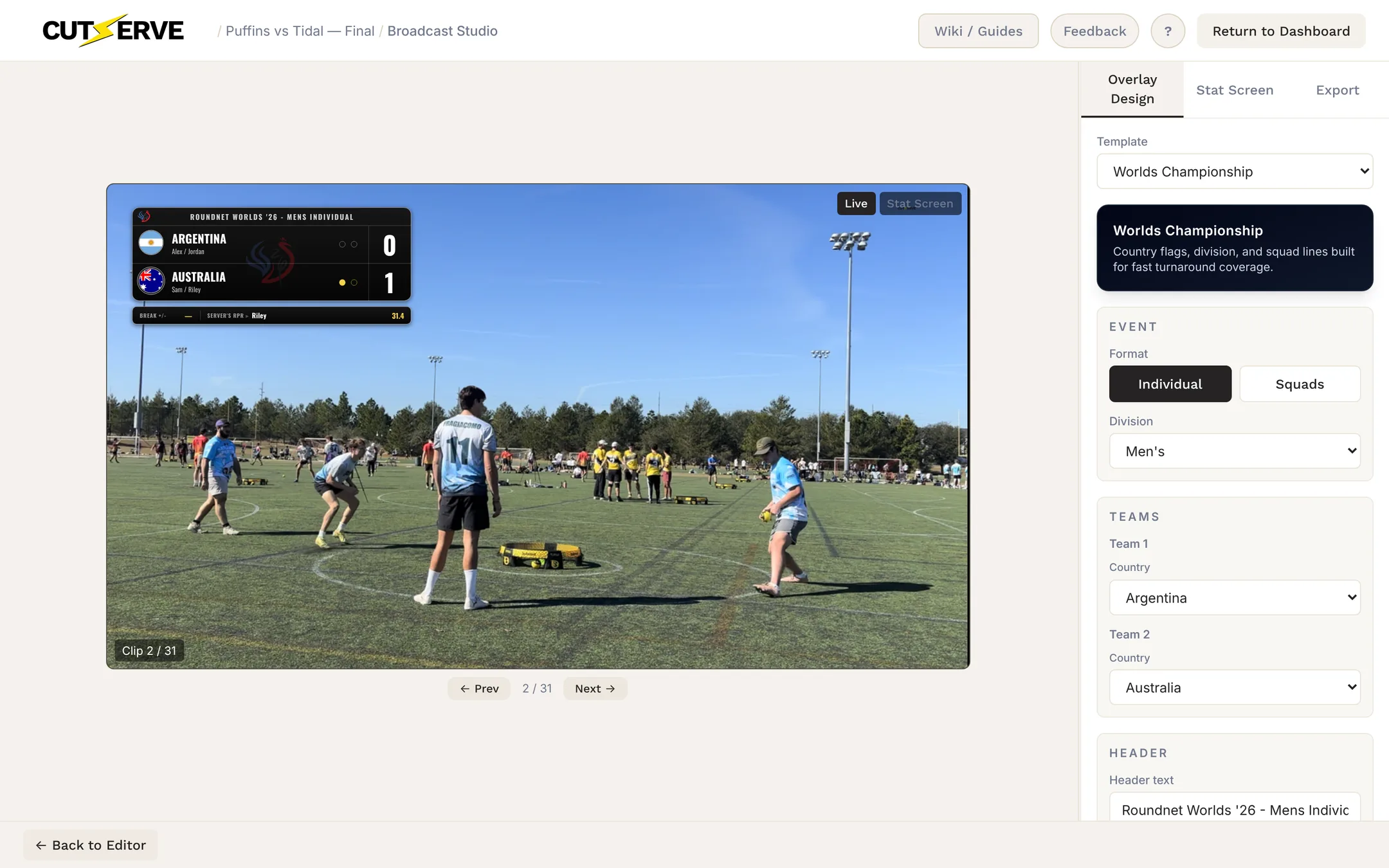
A Broadcast Pro-style scoreboard built for Roundnet Worlds coverage.
- Country flags instead of team logos, chosen per team from the Country menus.
- Individual or Squads format with a Men's, Women's or Mixed division. For squads, one Line selector keeps both teams on the same line.
- A header that fills in automatically from the format and division, and can be edited.
Custom Upload
Upload your own PNG, such as a sponsor graphic or a custom lower-third, and it's composited over every clip. You can still show team names and logos on top, with your own size, colors and positions.
- Choose Custom Upload in the Template menu
- Upload your PNG file
- Adjust the name, score and logo settings until the preview looks right
Callouts
In Broadcast Pro and Worlds, CutServe adds lower-third callouts automatically: an ace or error callout when you tagged one, and your own text when a clip has a text overlay. Callouts appear as the point ends. In the classic template, text overlays fade in at the end of the clip.
The Stat Screen
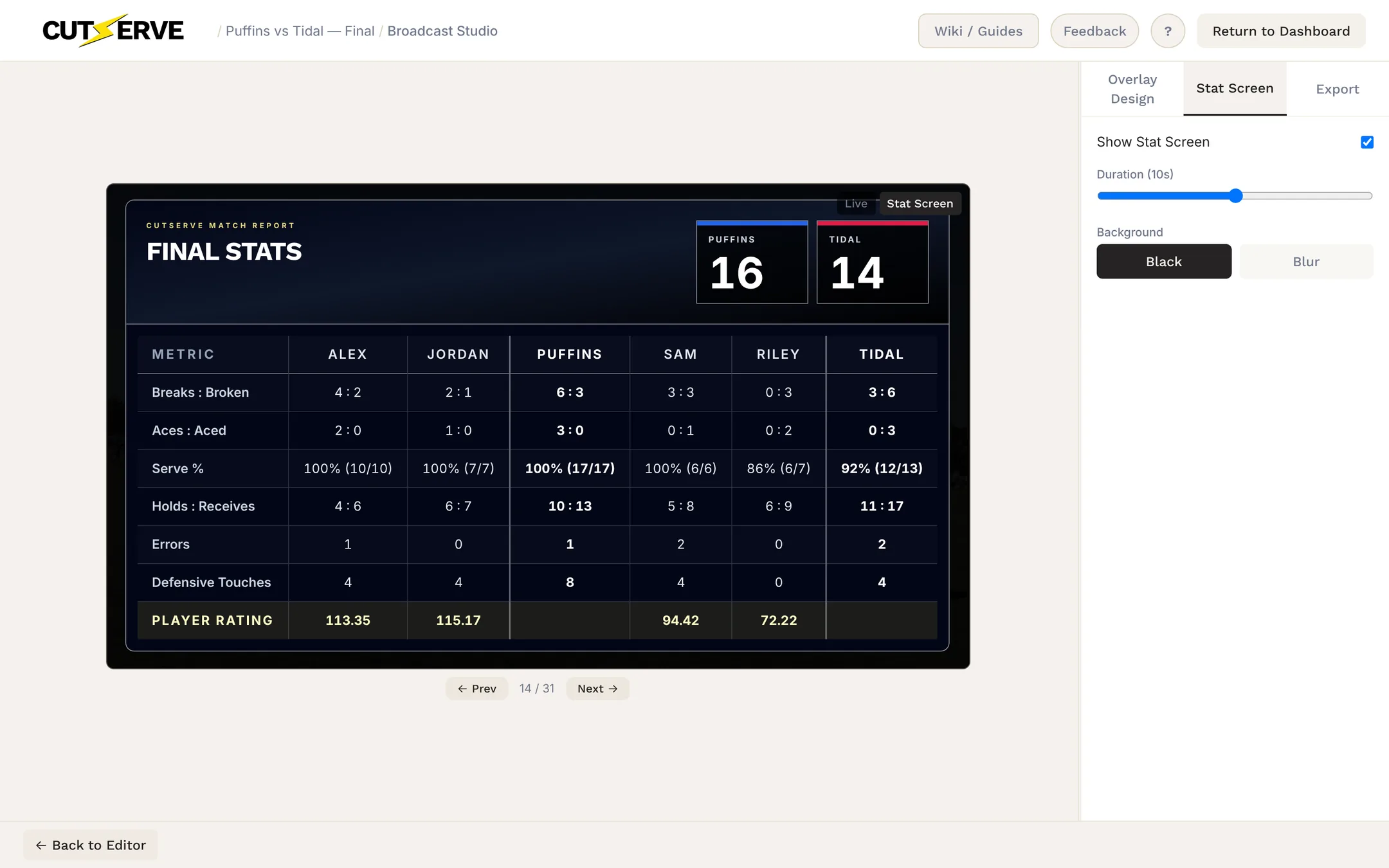
The stat screen is a CutServe Match Report added at the end of the video, built from your stat tags:
- The final score
- Breaks, aces, serve percentage, holds, errors and defensive touches for each player and team
- Each player's rating (RPR)
In the Stat Screen tab, turn on Show Stat Screen, set the duration (5–15 seconds), and choose a Black or Blur background.
Export Settings
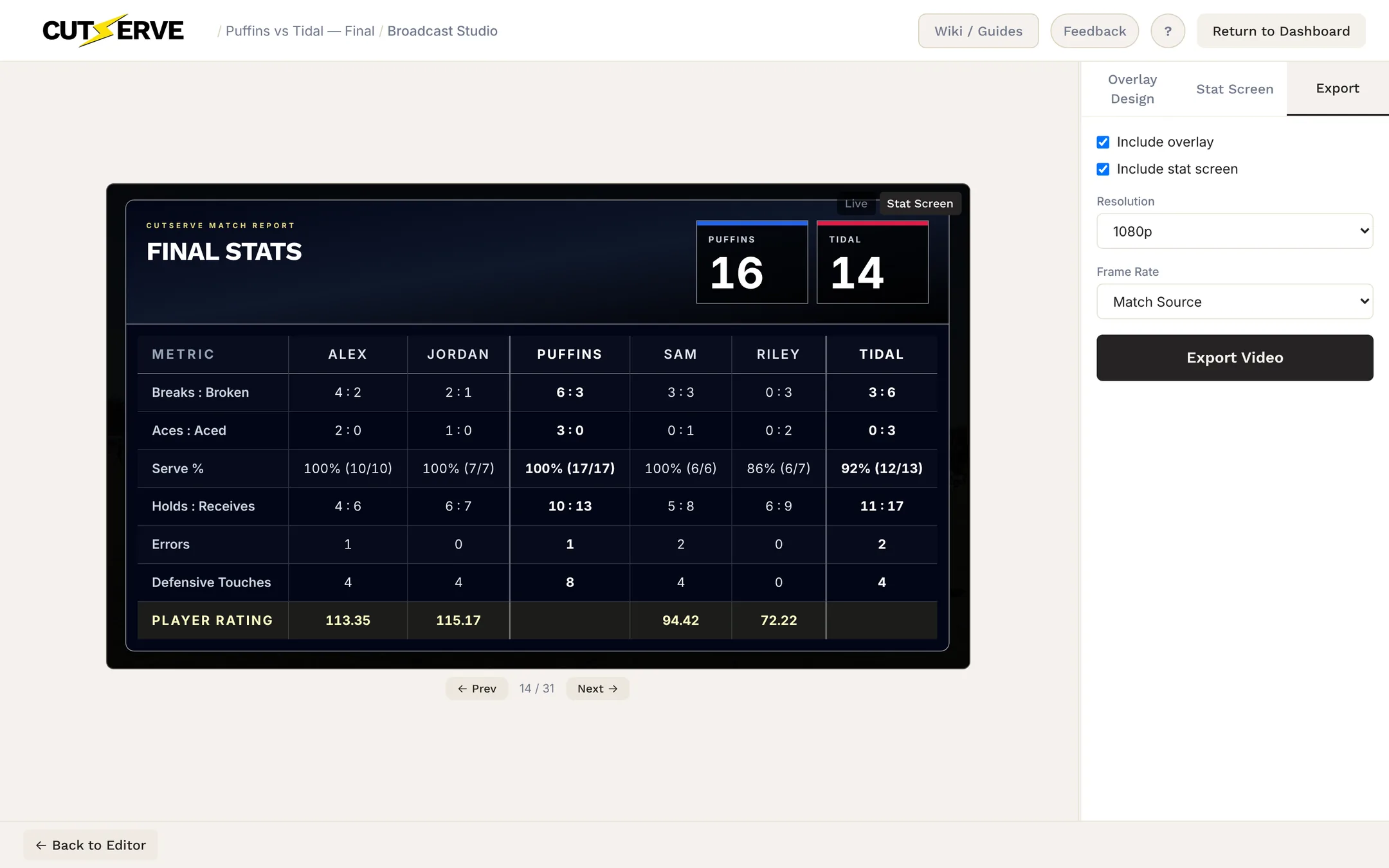
The Export tab controls the output:
- Include overlay and Include stat screen checkboxes
- Resolution: 720p, 1080p, 1440p or 4K
- Frame rate: match the source, or 30, 60 or 120 fps
Rendering
Click Export Video and choose where to save. The default filename is your project name followed by _condensed.mp4.
Rendering runs in the background with progress in the jobs bar, so you can keep working. If you start another export, it waits in a queue and starts when the current one finishes. When it's done, the notification has Show in Finder (Show in Explorer on Windows) and Open buttons.
Exports are standard MP4 files, ready to upload to YouTube or Instagram or share in a group chat.