Stat Tagging Reference
Stat tagging connects each clip to what actually happened in the point. Tags drive the automatic scoreboard in the editor, power the stats screen in Broadcast Studio, and give your highlight reel context beyond just “here's a cool rally.”
How Tagging Works
Select a clip, then click a stat button in the right panel, or press the corresponding number key. Some stats ask you to select which player(s) were involved before confirming.
Every tagged clip gets marked with their stat. Untagged clips remain Pending. You don't have to tag every clip to export, but tagged clips unlock the full scoreboard and stats overlay in Broadcast Studio.
Stat Types
The serve hits the net and is unreturnable. The serving team wins the point without a rally.
Two consecutive service errors. The point goes to the receiving team.
The server wins the point through direct service pressure, the return is weak or forced by the quality of the serve.
A clean return with no defensive touches. The receiving team gets the serve back in a straightforward exchange.
A point won after one or more defensive touches by both sides. Use this when there's a genuine back-and-forth defensive exchange and the serving team eventually wins it. You'll be asked to log the touch sequence in order.
Similar to a Defensive Break, but the team that was recieving wins the point after a defensive exchange from both sides. The distinction is which team wins: Hold = receiving team wins, Break = serving team wins. Log the touch sequence the same way.
An unforced error by a specific player, such as a horrible set, a missed hit, or a net violation. Select exactly one player when prompted.
Use this to tag a clip as reviewed without assigning a specific stat. Useful for clips you want to keep in the reel that don't fit neatly into another category.
Tagging Players for Defensive Stats
When you select Defensive Break, Defensive Hold, or Error, a player picker appears.
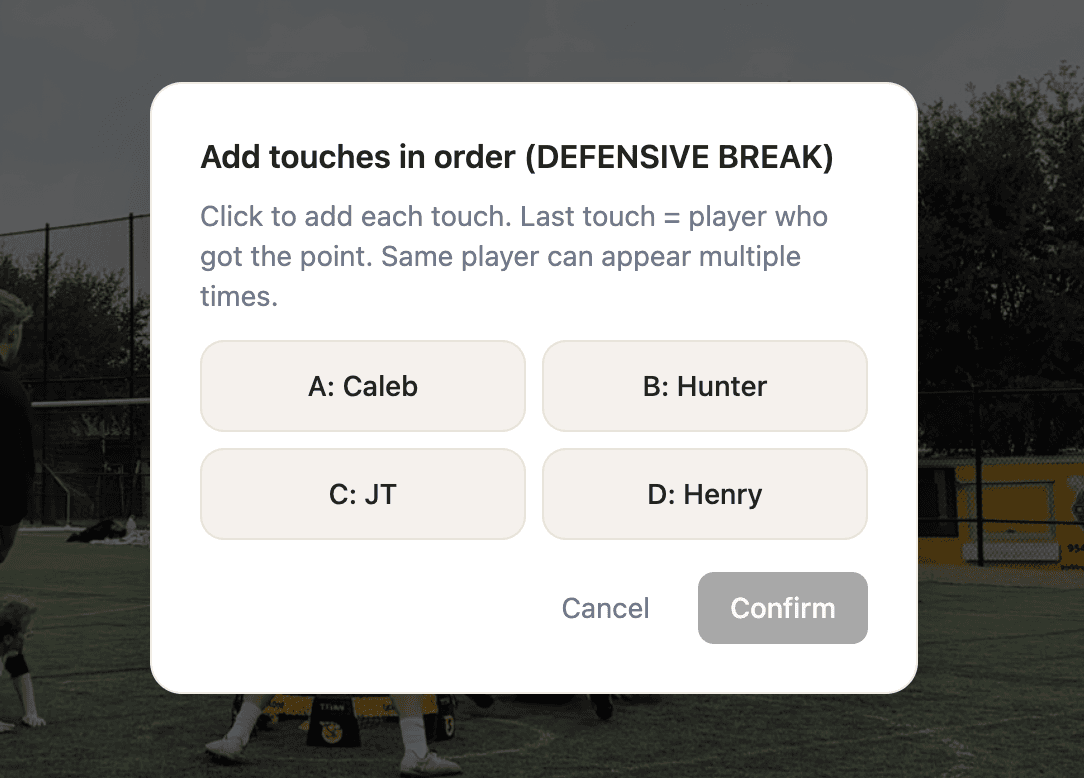
- For Error: click exactly one player, the one who made the mistake
- For Defensive Break / Hold: click each player in the order they got the first touch off a hit. The same player can appear multiple times. The last touch is the player who won the point off of their touch. Click ← Undo last if you make a mistake in the sequence, then confirm when the sequence is complete.
Keyboard Shortcuts for Tagging
Press 1 through 8 with a clip selected to instantly apply that stat. If the stat requires player selection, the player picker will open automatically. This keeps your hands on the keyboard for a fast tagging rhythm.
Quick Reference