Export & Broadcast Studio
When your clips are edited and tagged, CutServe can render the final reel two ways: a quick export that stitches your clips into a clean MP4, or Broadcast Studio, a full overlay editor where you add team names, score graphics, stat screens, and custom branding before rendering.
Quick Export
Click Export in the sub-action bar to render immediately without opening Broadcast Studio.
You'll be prompted to choose a save location and filename. CutServe then renders every kept clip into a single MP4 in order, with no overlays.
Use quick export when you want a clean, unbranded cut without any graphics.
Opening Broadcast Studio
Click Export while in the editor to open Broadcast Studio (if your account has exports available).
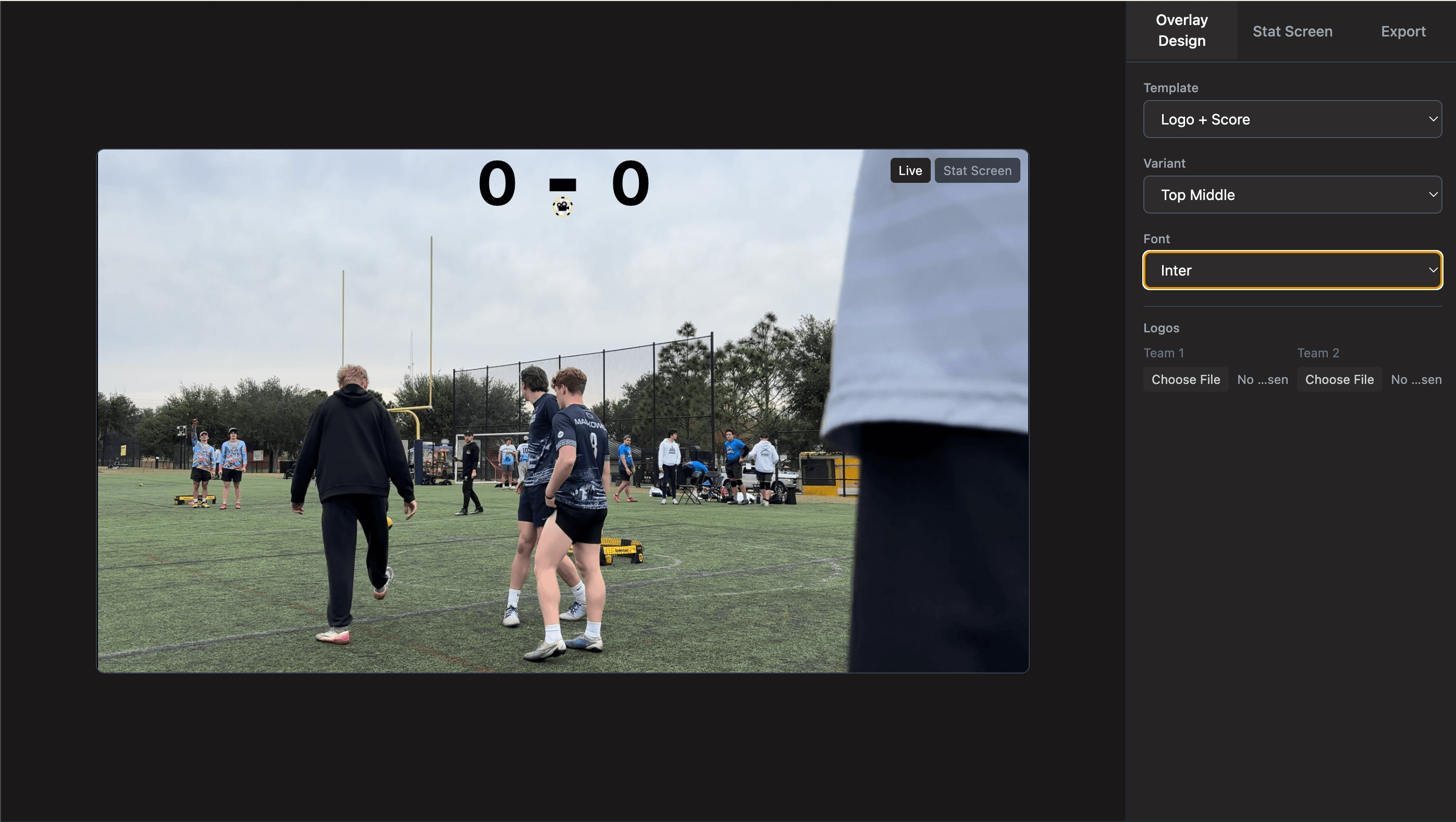
Broadcast Studio is a full-screen overlay editor with a preview panel and a configuration sidebar.
Team and Match Info
The top section of the Studio sidebar shows the team names, player names, and current score pulled from your Match Setup. These populate automatically, so you don't need to re-enter them.
If anything looks wrong (wrong team name, wrong player), go back to the editor and click Settings to update your Match Setup, then return to Broadcast Studio.
Overlays
Broadcast Studio includes two overlay modes:
Preset overlays
Built-in graphic templates that add a score bar, team names, and a subtle CutServe brand mark to your clips. Select a preset from the dropdown and it previews instantly.
Custom PNG overlay
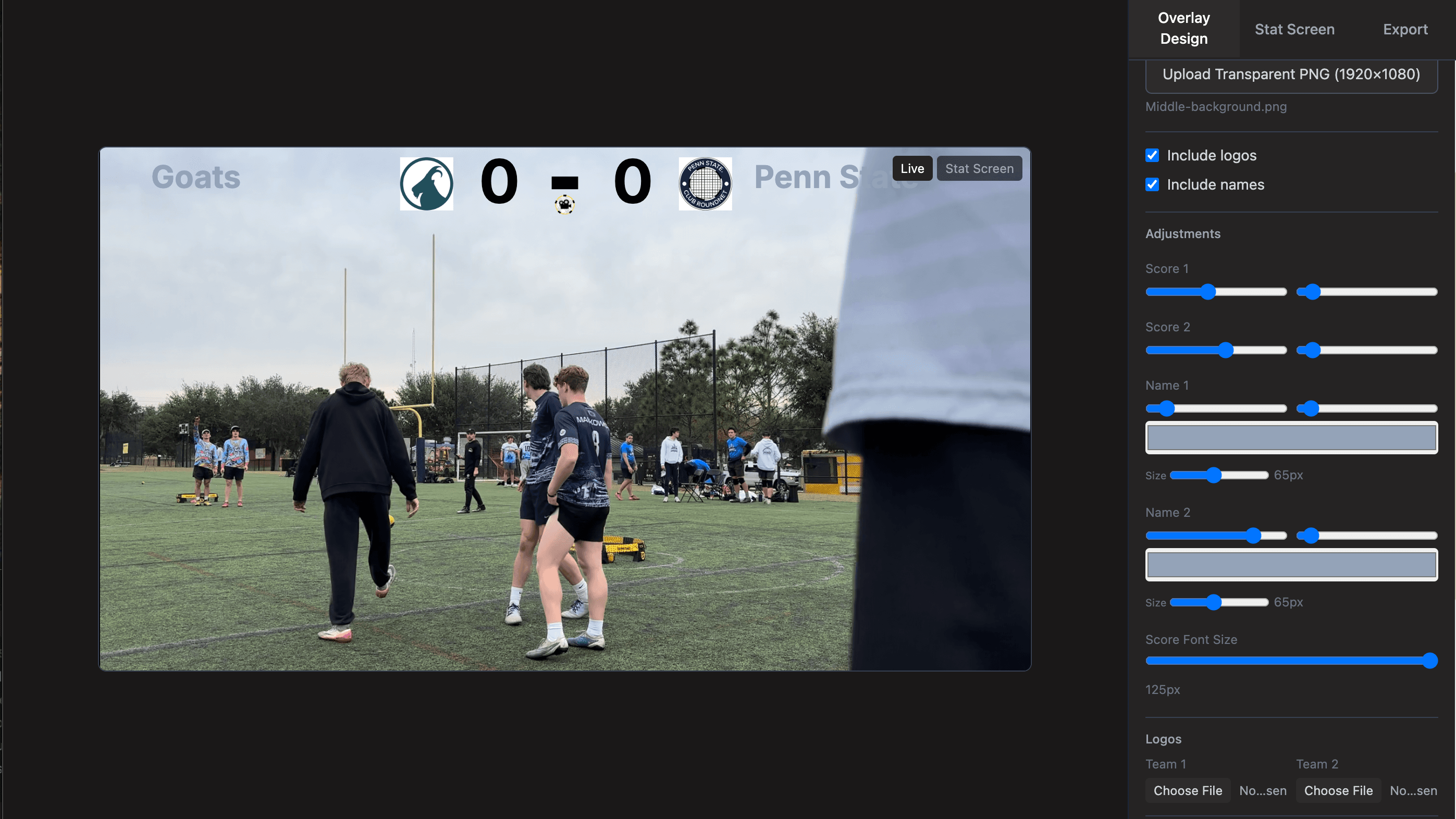
Upload your own PNG file, such as a sponsor logo, a team graphic, or a custom lower-third, and it's composited over every clip in the reel.
To upload a custom overlay:
- In the Studio sidebar, scroll to the Overlay section
- Click Upload Custom PNG
- Select your PNG file, which should be the same resolution as your source video (typically 1920×1080) with a transparent background
- The overlay previews immediately in the video player
The Stats Screen
Broadcast Studio can generate an automatic stats screen to insert at the beginning or end of your reel. It pulls from your stat tags to show:
- Final score
- Point breakdown by stat type
- Individual player touch counts (if Defensive stats were tagged)
Toggle Include Stats Screen in the sidebar to add it.
Rendering
When your overlay and settings look right, click Render to export the final video.
Choose a save location when prompted. Rendering runs in the background, and you'll see a progress indicator and get a notification when it's done.
Rendered files are standard MP4s, ready to upload directly to YouTube, Instagram, or share in a group chat.