Editing Guide
After processing, CutServe hands you a timeline of every detected rally, trimmed and labeled by type, and ready to review. The editor is where you shape the final reel: cutting bad clips, tightening timing, tagging what happened on each point, and getting everything exactly right before export.
The Editor Layout
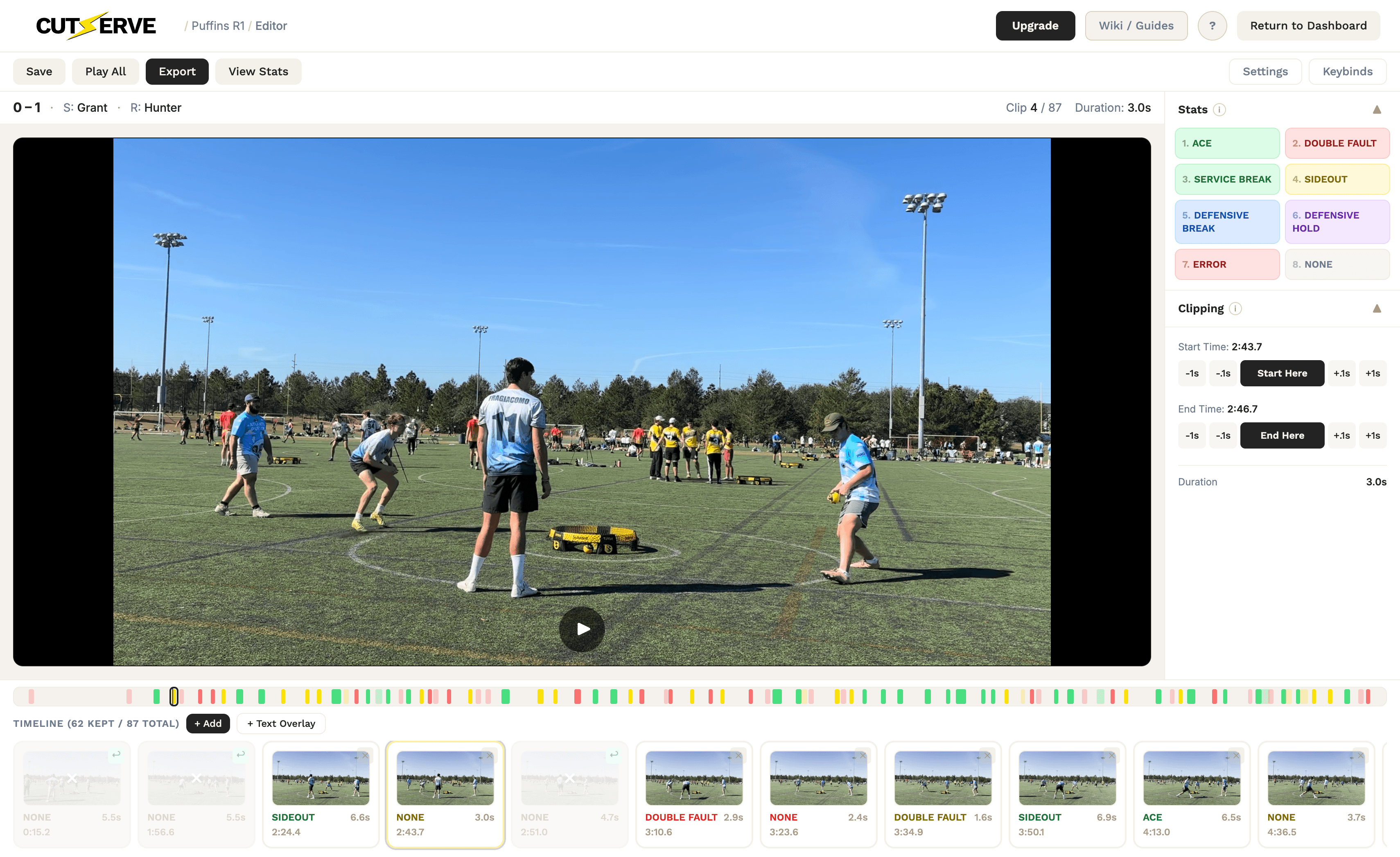
The editor has four main areas:
Sub-action bar (top)
Save, Play All, Export, View Stats, Settings, and Keybinds buttons
Video player (center-left)
Plays the selected clip in a loop. Click the video to play/pause.
Right panel
Two collapsible sections: Stats (for tagging what happened) and Clipping (for adjusting clip timing)
Timeline (bottom)
A horizontal filmstrip of all detected clips along with a timeline. Click any clip to jump to it.
Navigating Clips
With the mouse: Click any clip card in the timeline to select it and jump to it in the video player.
With the keyboard:
The video loops the selected clip automatically so you can watch it as many times as you need.
Trimming Clip Timing
Every clip starts with timing the AI detected. It's usually close, but you'll often want to tighten the start or end by a second or two.
The Fastest Workflow: Keyboard Only
- Select a clip and watch it play
- At the exact moment the clip should start, press W, this sets the start point to wherever the playhead is right now
- Keep watching. At the exact moment it should end, press S, this sets the end point
You can move through an entire reel tagging and trimming without touching the mouse.
Nudge buttons (mouse): If you prefer clicking, the Clipping panel has nudge buttons for fine-tuning:
| Key | Action |
|---|---|
| -1s | Move the point back 1 second |
| -.1s | Move the point back 0.1 seconds |
| Start Here / End Here | Set to current playhead position |
| +.1s | Move the point forward 0.1 seconds |
| +1s | Move the point forward 1 second |
All nudge keyboard shortcuts:
| Key | Action |
|---|---|
| Q | Nudge start back 1 second |
| Shift + Q | Nudge start back 0.1 seconds |
| E | Nudge start forward 1 second |
| Shift + E | Nudge start forward 0.1 seconds |
| A | Nudge end back 1 second |
| Shift + A | Nudge end back 0.1 seconds |
| D | Nudge end forward 1 second |
| Shift + D | Nudge end forward 0.1 seconds |
Trashing and Restoring Clips
Not every detected clip is worth keeping. If a clip is a false positive, a duplicate, or just not good enough, trash it.
- To trash a clip: Click the ✕ button on its timeline card, or press Delete / Backspace with the clip selected.
Trashed clips turn gray and are excluded from export. They stay in the timeline so you can bring them back.
- To restore a clip: Click the ↩ button on a trashed clip's card.
Adding Clips Manually
If the AI missed a rally, you can add it yourself.
Click the + Add button in the timeline header. A dialog lets you enter a start and end time in seconds. The new clip is inserted in chronological order.
Adding Text Overlays
If a rally would be unclear to viewers without extra context, you can add a short text overlay to that clip (for example, HIGH REDO or OOB).
- Select a clip, then click + Text Overlay (or press T).
- In the modal, choose one of the common label buttons or type your own custom text.
- On export, that text is burned into the last second of that specific clip.
Play All Mode
Click Play All in the sub-action bar to watch every kept clip back-to-back, in order, as if it were the finished reel. This is the best way to review pacing and see how the edit flows.
Click ⏹ Stop to exit Play All mode and return to single-clip editing.
Saving Your Work
Click Save at any time to write your edits to disk. CutServe saves your clip list, timing adjustments, stat tags, and player assignments, so you can close the app and pick up exactly where you left off.